Civil Aviation Administration of China: Power banks without 3C certification or recalled models banned on domestic flights

To ensure the safety of aviation operations, the Civil Aviation Administration of China has issued an urgent notice. Starting June 28, passengers are prohibited from carrying power banks that lack a 3C certification label, have unclear 3C labeling, or belong to recalled models or batches on domestic flights. (For details, please visit the official website of the State Administration for Market Regulation's Defective Product Recall Technical Center at www.samrdprc.org.cn/xfpzh/xfpgnzh)

Pudong Airport and Hongqiao Airport will enforce the requirements of this notice to ensure passenger safety. We kindly ask all passengers to comply with this notice by carefully checking the certification label, brand, and model of your power banks before traveling. Please do not bring non-compliant power banks on board. Remove your power bank before security checks to prevent travel delays.

Thank you for your understanding and cooperation.

Read, please close

Current location:Home > Passenger Guide > ONEID
One ID Service
Online registration and authorization
When registering your face online, you need to download and use the Hang Lyu Zong Heng App as shown in the image.
(1)Preconditions
Before passengers use the Hang Lyu Zong Heng App for face registration, they need to meet the following two prerequisites:

1.Completion of electronic ID (eID) registration, which can be done by following the steps shown in Picture 1.1. Please note that when applying for eID, you will need to read the information from your second-generation ID card (or passport). Therefore, the phone used for eID registration must have NFC functionality to read the ID card information. (If this step is not completed, passengers will be automatically guided to open eID during the face registration process).

2.Tickets purchased and logged in to the Hang Lyu Zong Heng App, where passengers can view their corresponding travel itinerary on the homepage as shown in Picture 1.2.
(2)Check-in process
1.The entrance for face registration is on the electronic boarding pass. Therefore, passengers need to check in first. As shown in Picture 1.2, go to the "Travel Itinerary" section under the "Homepage" and click on "Check-in now."
2.After selecting a seat (as shown in Picture 2.1), click on "Submit Seat Selection" once completed (as shown in Picture 2.2).
3.On the "Check-in Information Confirmation" pop-up page (as shown in Picture 2.3), read and confirm the selected declaration option "I have read and agree to …" and proceed with the confirmation submission.
4.Upon successful check-in (as shown in Picture 2.4), click on "Electronic Boarding Pass" to access the electronic boarding pass page and proceed with the face registration.
  • (3)Face registration
    1.Besides accessing the "Electronic Boarding Pass" from the "Check-in Successful" page, passengers can also enter it through the "Travel Itinerary" section on the homepage, as shown in Picture 3.1.

    2.On the "Electronic Boarding Pass" page (as shown in Picture 3.2), passengers can initiate the One ID service face registration process by clicking on the shortcut above the electronic QR code.
  • 3.After entering the One ID service page via the shortcut on the electronic boarding pass (as shown in Picture 3.3), passengers will find relevant service introductions to understand the service details and usage process. After agreeing to the relevant service terms, passengers can proceed with face registration by clicking on "Authorize One ID."

    4.Clicking on "Authorize One ID" will lead to the face detection and collection page (as shown in Picture 3.4), where passengers follow the on-screen prompts to complete facial information collection.

    5.Once the collection is completed, automatic face recognition and document verification will be conducted (using the document information registered during eID registration, or passengers will be guided to open electronic ID if not done previously). If successful, passengers will be directed to the "One ID Service Authorization" page (as shown in Picture 3.5), where they can confirm authorization for Shanghai Hongqiao International Airport usage scenarios and proceed with authorization.
  • 6.After confirmation, passengers will be directed to the One ID service usage guide page (as shown in Picture 3.6), where they can learn about the self-service facial recognition services available at Hongqiao Airport during travel. Passengers will have a three-month authorization period for One ID service from the date of successful registration. During this period, passengers who purchase tickets departing from Hongqiao Airport can use facial recognition for self-service at corresponding devices.

    7.Passengers who have completed face registration will no longer find a shortcut for face registration on their electronic boarding pass. The information above the QR code will inform passengers of the supported facial recognition feature and provide access to the usage guide, as shown in Picture 3.7.
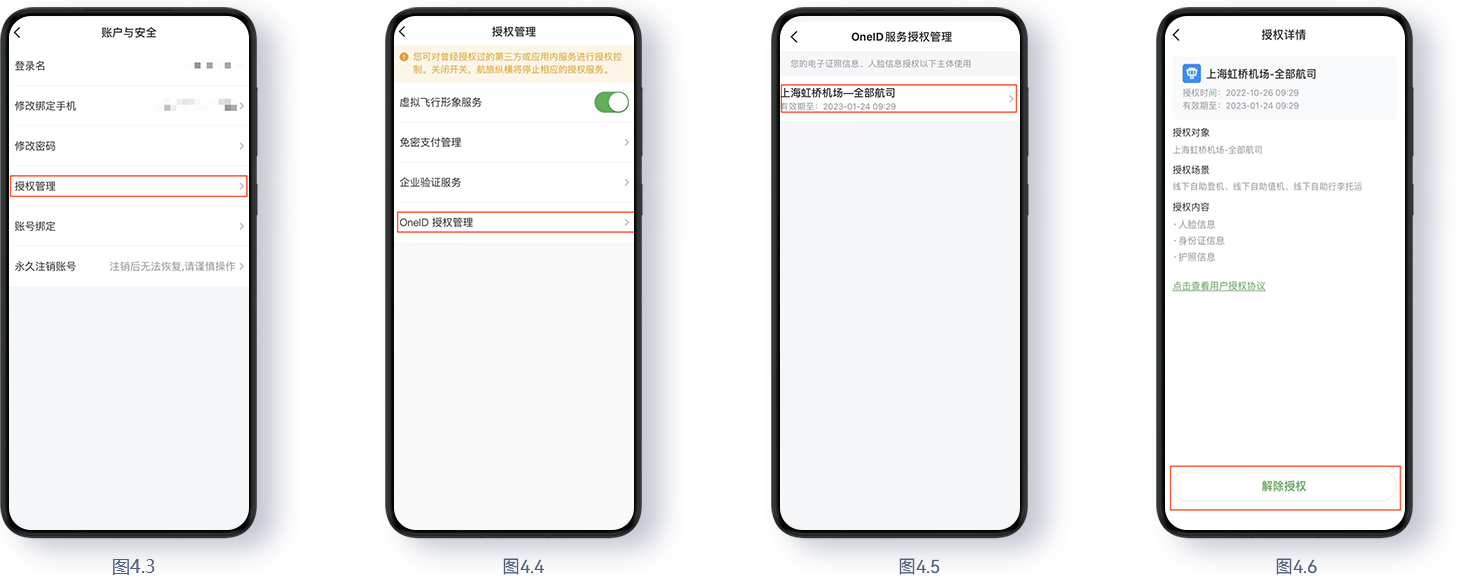
(4)Cancellation of registration
Passengers who have completed face registration and no longer require One ID service within the three-month authorization period can cancel registration by following these steps:

1.Go to the "Mine" section, click on the gear icon in the top right corner to enter the settings page, as shown in Picture 4.1.
2.In the settings page, click on "Account and Security," as shown in Picture 4.2.
3. In the "Account and Security" page, click on "Authorization Management," as shown in Picture 4.3.4. In the "Authorization Management" page, click on "One ID Authorization Management," as shown in Picture 4.4.5. In the "One ID Authorization Management" page, click on the corresponding One ID authorization scenario "Shanghai Hongqiao Airport - All Airlines," as shown in Picture 4.5.6. In the "Authorization Details" page (as shown in Picture 4.6), click on "Revoke Authorization" at the bottom to cancel face registration.